ESM1
Bagpipe Manometer
User's Manual
Introduction
The picture below shows the main components of the ESM1 Bagpipe Manometer.
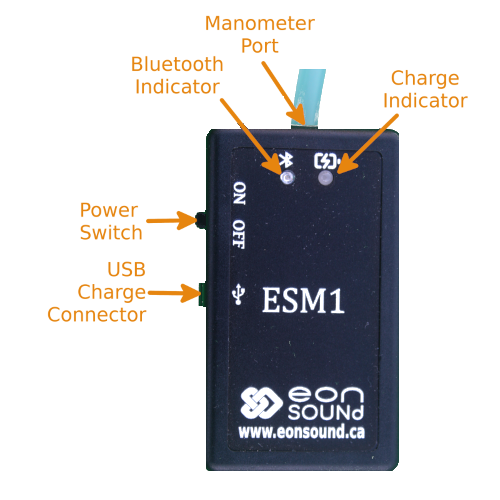
Before using your ESM1, we recommend that you fully charge it.
Charging
Plug a USB micro B charger into the ESM1. The "CHRG" LED is amber when the ESM1 is charging and green when complete. The power switch must be in the "OFF" position to charge.
Installation
Below is a picture of a typical installation of the ESM1 Bagpipe Manometer on a bagpipe. The steps to install are:
- Attach the ESM1 to the bagpipe drone with provided elastic band. Loop into the device guides and wrap around the drone itself as shown.
- The outer tenor drone is typically used.
- Plug the ESM1 pressure sensor cork into the drone opening as shown. The drone reed usually does not effect operation and can be left in place
- Switch the unit on. The blue "BT" LED should be constantly on indicating that it is waiting bluetooth connection.
Operation
With the ESM1 manometer and app installed as described above, the operation is:
- Switch the unit on. The blue "BT" LED should be constantly on indicating that it is waiting bluetooth connection.
- Start the ESM1 application on your mobile device.
- A list of bluetooth devices in range should be presented. Select the ESM1. You should have to do this step only once. Afterwards, the app will automatically connect to your ESM1.
- Once connected, you should see the "BT" LED on the ESM1 blink once every 2 seconds indicating that data is being sent to the app.
- You will be brought back to the main view. When begin to play your bagpipes, the pressure should be graphically displayed.
App User's Manual
- Download the app at the "Google Play Store".
- This app uses bluetooth and Android requires location permission to be turned on. You must do this manually in the app setup.
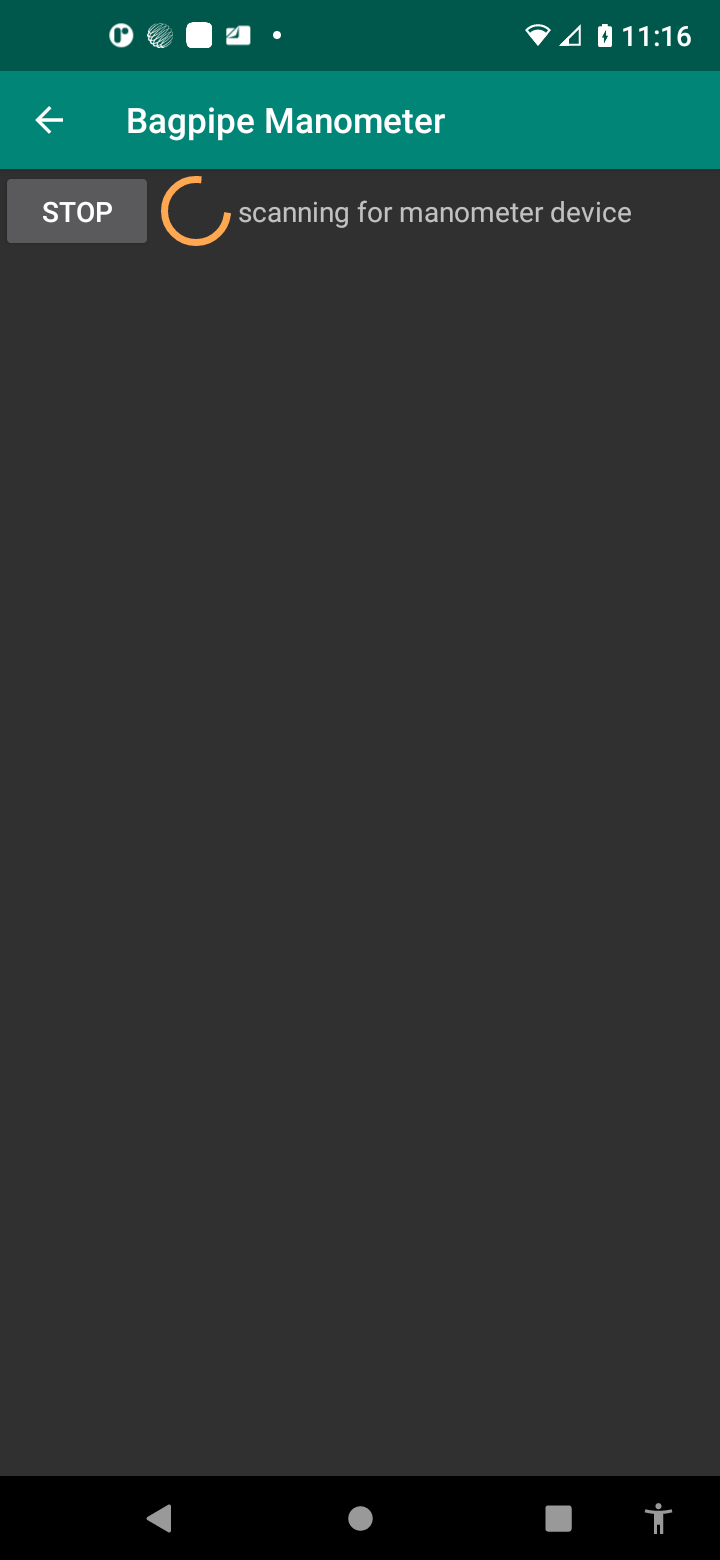
- Start the app. If this is the first time the app has been used on the device, you will see the connection view.
- After connecting to the ESM1, you will see the main view. If you have connected to the ESM1 before and the ESM1 is powered, you will be automatically taken to the main view.
Connecting
Main view
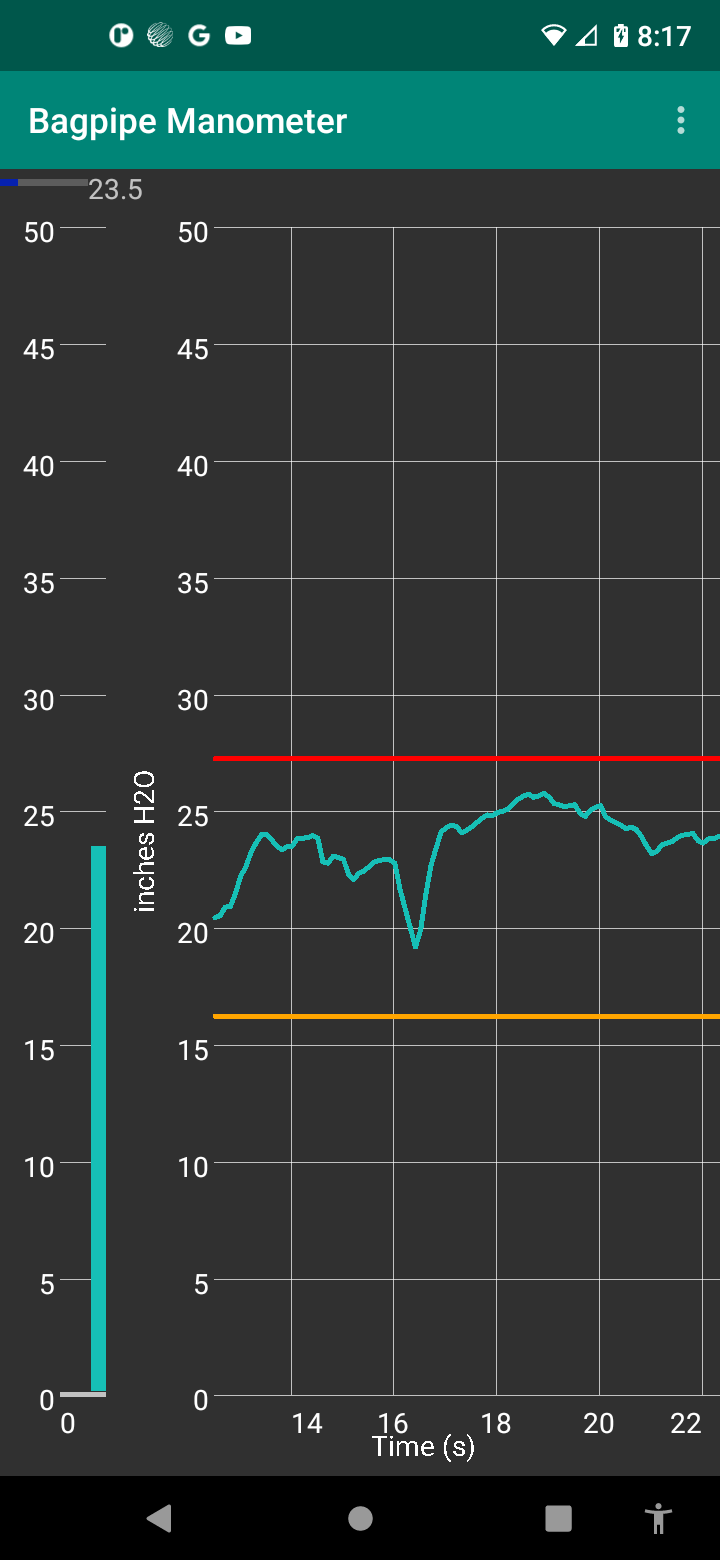
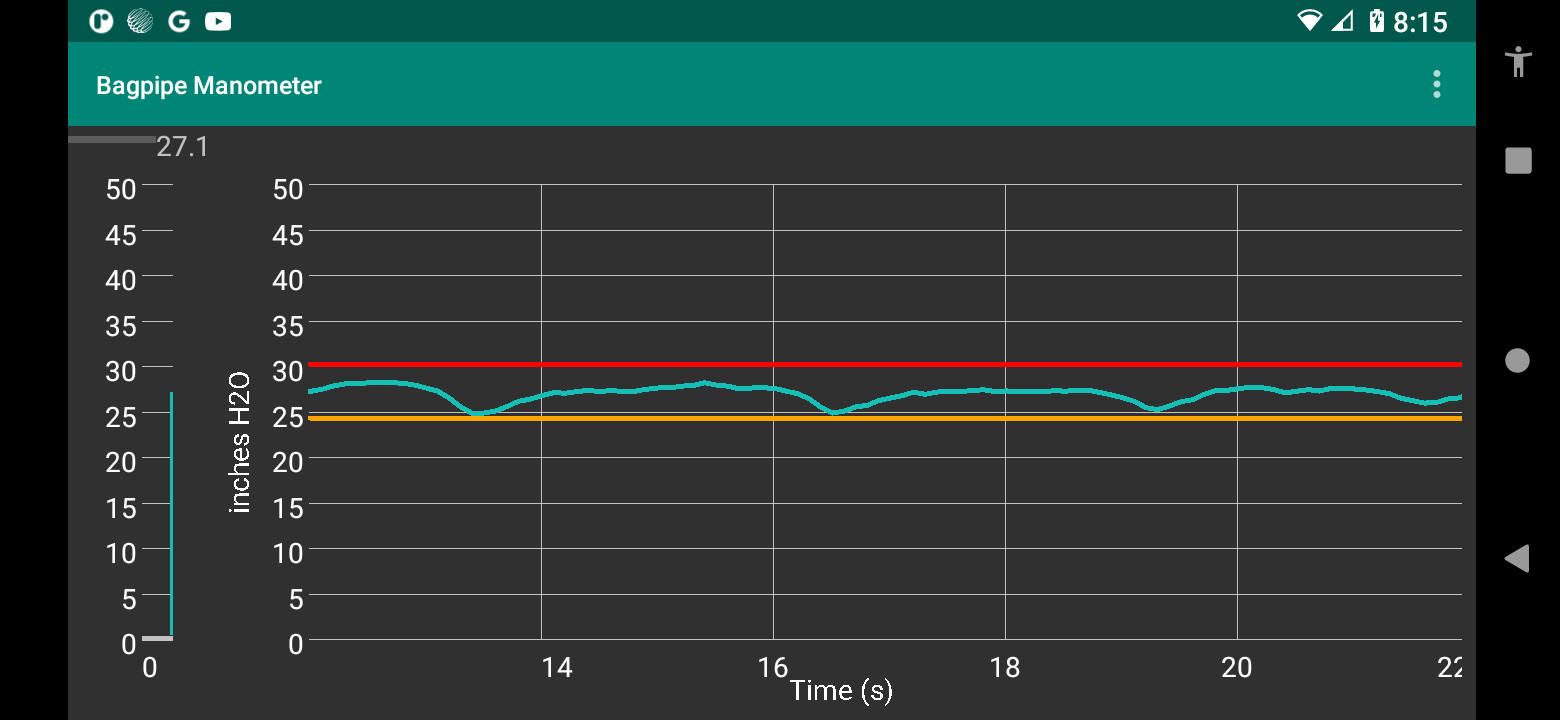
The main view shows the real-time data being recorded. It also shows the minimum and maximum pressure in red. The closer that minimum and maximum are together, the better the play and the better the score. Overall variation is also analyzed for the score. When playing has stopped, a score will be presented in a pop-up dialog. Press "OK" or start to play again to dismiss. you can zoom in on the real-time plots by tapping once in the the plot area. Two finger gesture allows the time axis to be zoomed in and out and sweeping left or right allows the time axis to be panned. A long press in the plot area restores the plot to default.
Settings
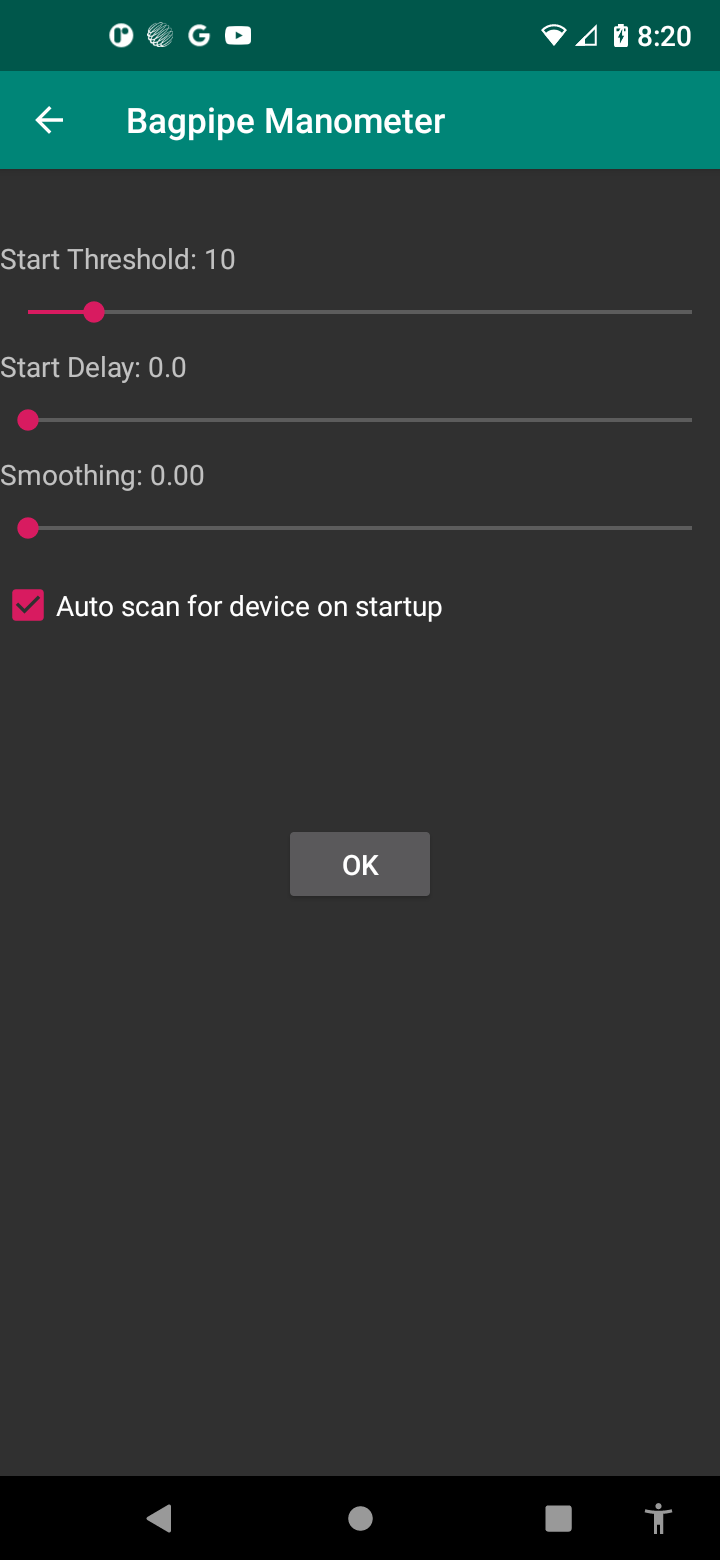
The Settings view allows you to set the pressure units to display and customize the sensitivity of the manometer.
Threshold: is the pressure over which the app will start to make readings. The allows you to strike in drones and measure the quality of your attack. For instance, if you typically play at 30 inches of water, then you may set the threshold around 20 inches of water. When the pressure is below the threshold, then measurements stop allowing you to evaluate your cut-off.
Start Delay: Delays the measurement once the start threshold has been attained. This allows you to settle your blowing pressure before measurements start. Ideally, the pressure should settle immediately and as your skill improves, you would decrease the start time.
Smoothing: is a filtering action applied to the raw pressure data. It will make the variation in pressure seem smoother. Ideally there should be no smoothing needed and as your skill improves, you would decrease the smoothing
Forget device address: Use this if you wish to unpair your device from the ESM1. To use the app again you will need to reconnect to the manometer.
Scores
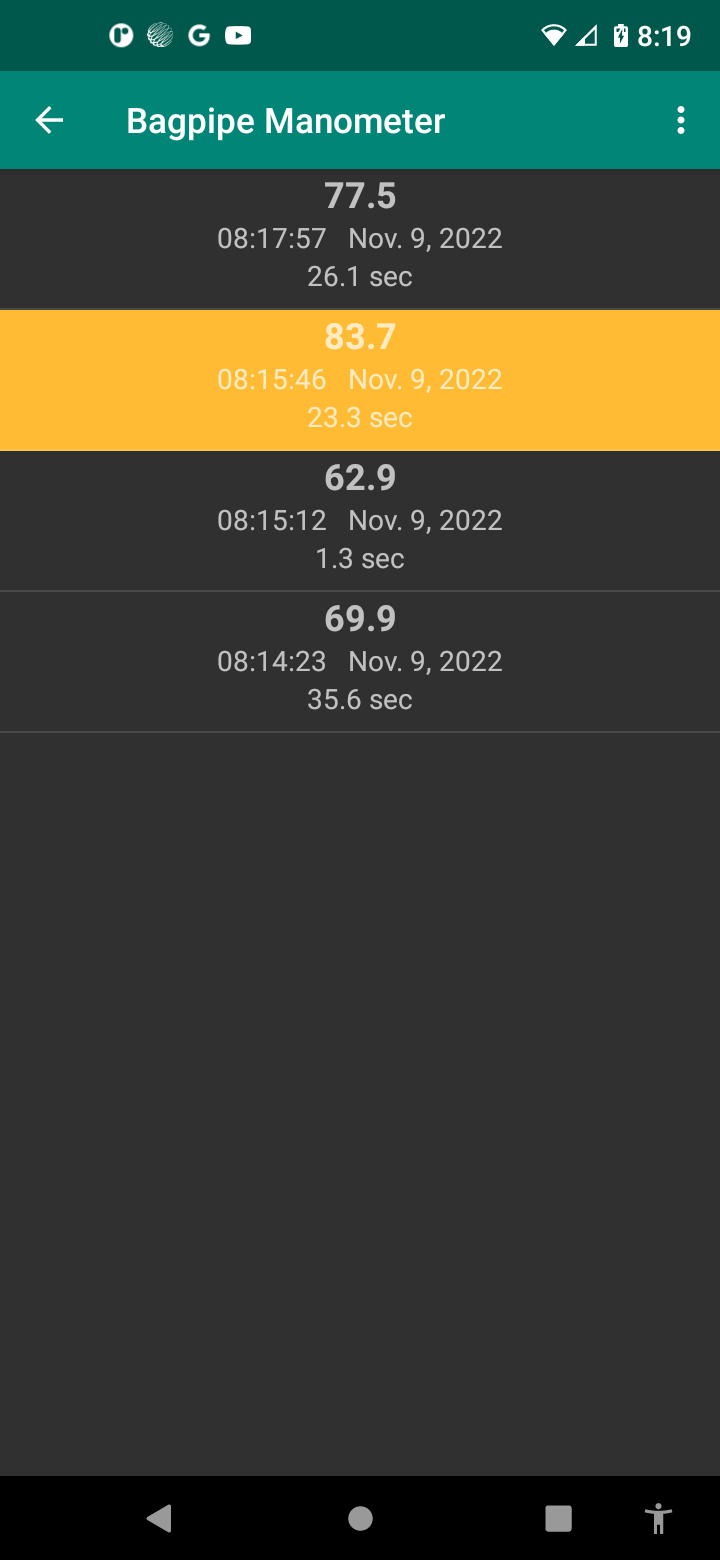
Each play recorded by the app is also scored based on how steady the blowing was. Each score is automatically saved and all scores can be reviewed by switching to the Score view. The score is a value out of 100 and also shows the start date/time as well as the play duration.
A single tap on the score brings up the plot of the data on the main view. A long tap on a score will lock or unlock a score. A locked score is indicated by the gold bsckground colour. A locked score can not be deleted. Swiping right on a score will delete that score. An undo prompt gives you the opportunity to revert the delete action.
All scores can be deleted by pressing the "CLEAR SCORE" button